Connect Zoho Books
Automatically synchronize your invoices, credit notes, payments, accounts, and contacts from Zoho Books with Billabex in just a few clicks via OAuth2.
Prerequisites
Before getting started, make sure you have:
- An active Zoho Books account
- Administrator rights on Zoho Books
- A Billabex account created
Connection steps
Step 1: access connections
- Log in to your Billabex account
- Click Settings in the navigation bar
- Select Connections
- Click Add a connection
- On the Zoho Books card, select your region

Where to find your Zoho Books region?
In Zoho Books, look at the domain at the end of the URL. For example, if the URL ends with .eu (https://books.zoho.eu/), select Europe.
More information: https://www.zoho.com/books/api/v3/introduction/#multidc
In Zoho Books, look at the domain at the end of the URL. For example, if the URL ends with .eu (https://books.zoho.eu/), select Europe.
More information: https://www.zoho.com/books/api/v3/introduction/#multidc
Step 2: authorize the OAuth2 connection
- Accept the Billabex authorization request
- You are redirected to Zoho
- Log in to your Zoho account if necessary
- Select your organization (if you have multiple)
- Click Confirm organization to authorize access
Multiple organizations?
If you manage multiple organizations in Zoho Books, you'll need to create a separate connection for each organization.
If you manage multiple organizations in Zoho Books, you'll need to create a separate connection for each organization.
Step 3 (optional): exclude certain accounts
If you don't want to synchronize certain customers:
- At the Configuration step
- Add the Zoho Books account IDs to exclude, separated by a comma
- These accounts will never be synchronized
Where to find a Zoho Books account ID?
In Zoho Books, go to the customer record. The ID appears in the URL: https://books.zoho.eu/app/.../contacts/679274000000061007?
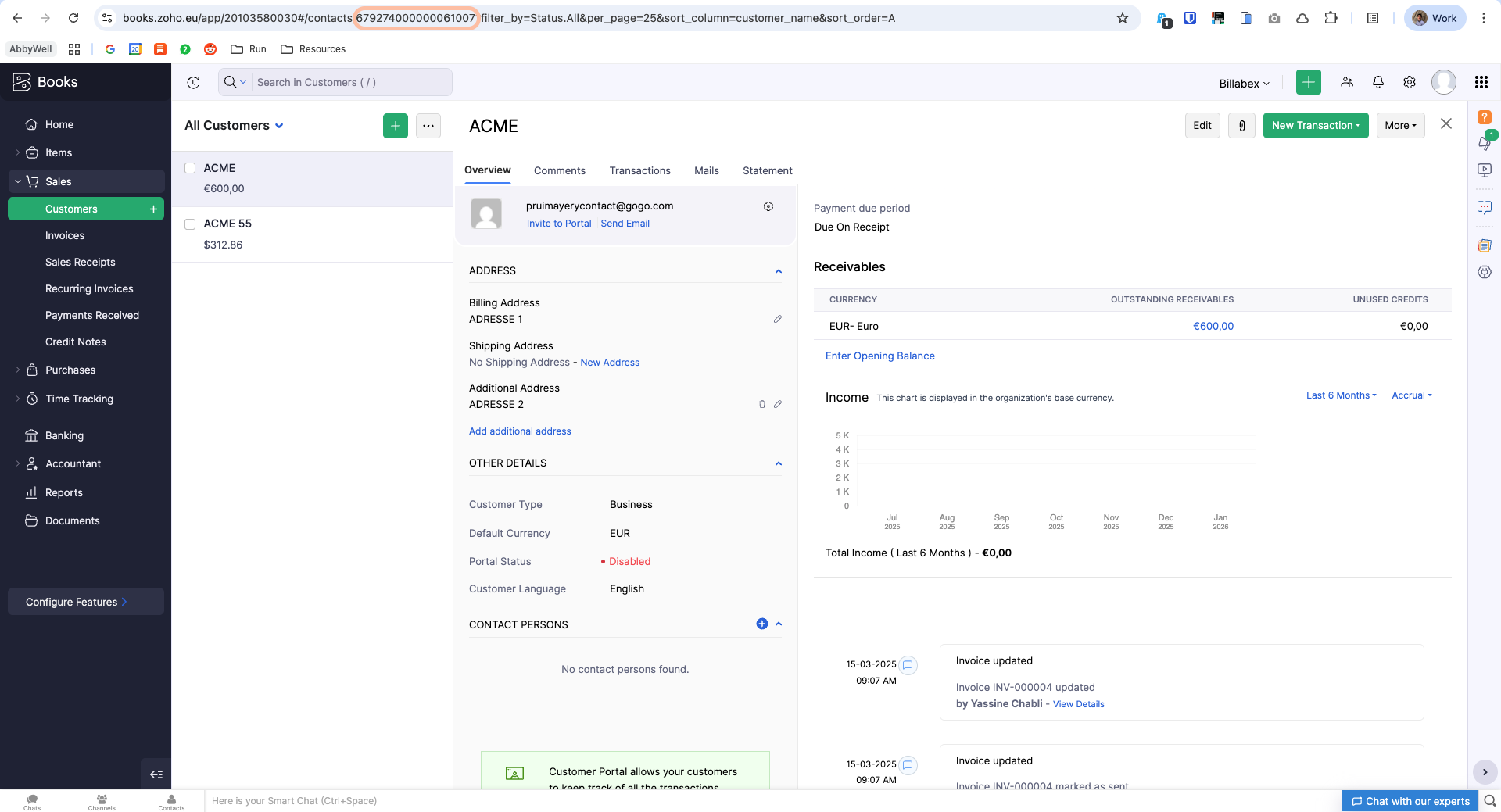
In Zoho Books, go to the customer record. The ID appears in the URL: https://books.zoho.eu/app/.../contacts/679274000000061007?
Use cases:
- VIP customers managed manually
- Internal company accounts
- Customers with specific payment methods such as direct debit
Step 4: launch the initial synchronization
- Click Activate the connection
- Data synchronization begins

The initial synchronization takes 5-10 minutes depending on volume.
Step 5: verify the synchronization
- Go to the Accounts module
- Check that the Zoho Books logo appears next to the account name
- Review some account data such as invoices, credit notes, details, etc.
- Make sure contacts have been imported correctly
Everything synchronized? Your Zoho Books connection is active!
Ongoing synchronization
From now on:
- Every new invoice created in Zoho Books appears in Billabex (once per day)
- Received payments automatically update invoice statuses
- Contact changes are synchronized
- New customers are added automatically
No action is required on your part.
Exclude an account after connection
If you want to exclude a specific customer:
- Go to the Accounts module
- Click on the account to exclude
- Click Options > Manage connection
- Click Exclude
Result:
- New invoices for this customer will no longer be synchronized
- Previously synchronized invoices remain in Billabex
- The account remains visible but inactive for synchronization
Remember to pause follow-ups or delete the account if you no longer want this customer to be contacted.
Disconnect Zoho Books
To completely stop data synchronization:
- Settings > Connections
- Click on the connection you want to remove
- Options > Delete

Previously synchronized data remains in Billabex but will no longer be updated.